How to Use Directories and Create Your Profile
Public Directories
One of your member benefits is having a public directory listing. The Hire a Professional Directory for APA members and the APAC-BE Certificant Directory for APAC Certificants help the public find accessibility professionals and help you build your business.
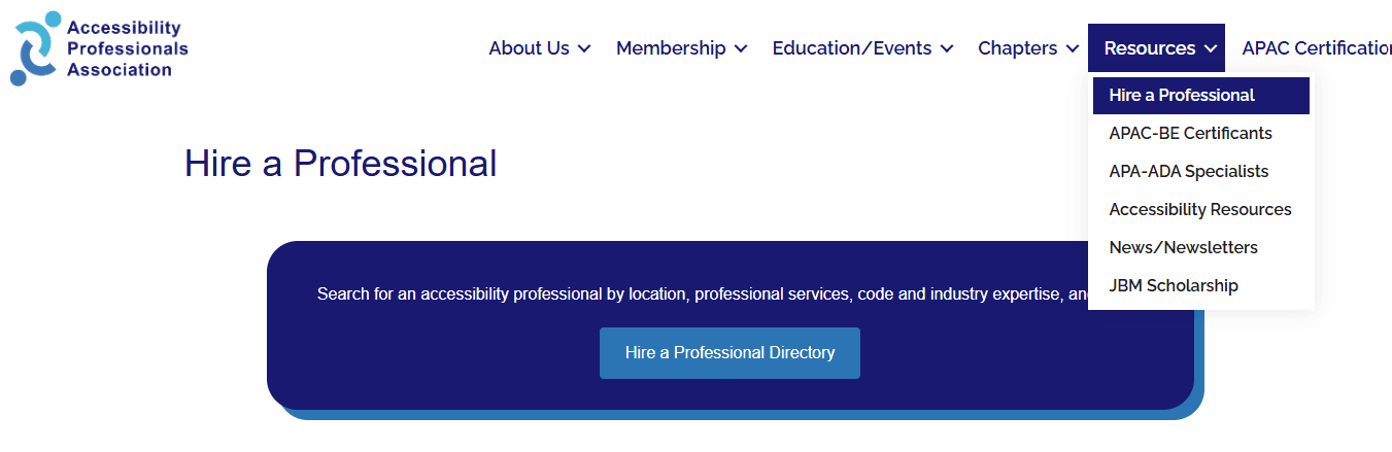
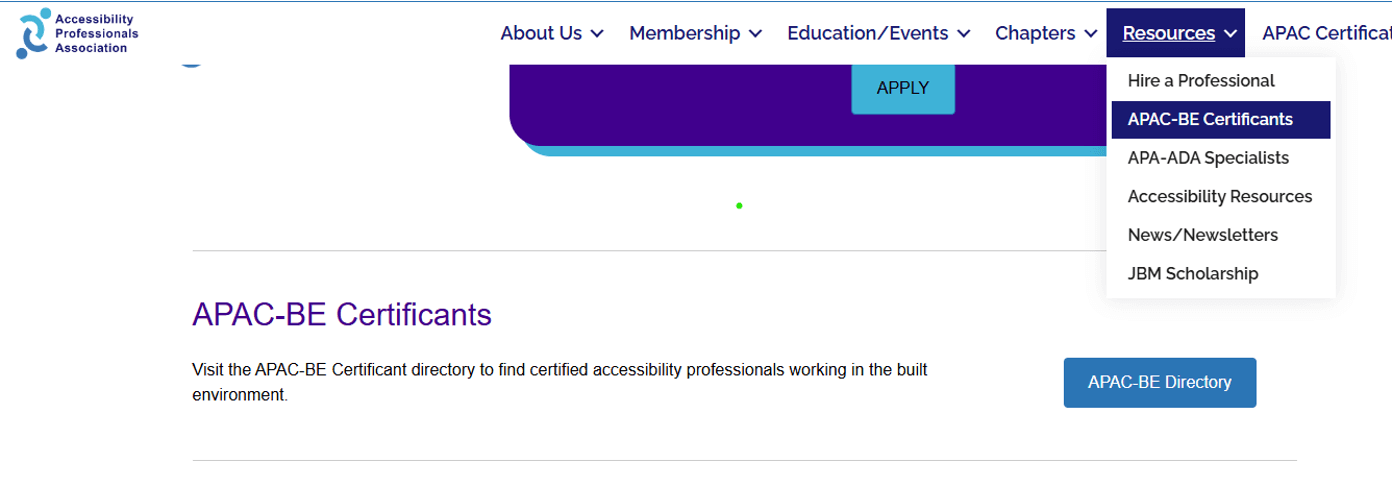
As an organization, we regularly receive inquiries from people looking for accessibility professionals. The directory allows people to contact the expert who matches their needs. Both public directories are found under the resources tab on the main menu of the APA Home Page. See screenshots below.
Public directories are secure:
- Your contact information, like phone number and email address, is not shared.
- To contact you, a non-member will fill out a form that will be emailed to you.
- You can then choose to respond.
Member Directories

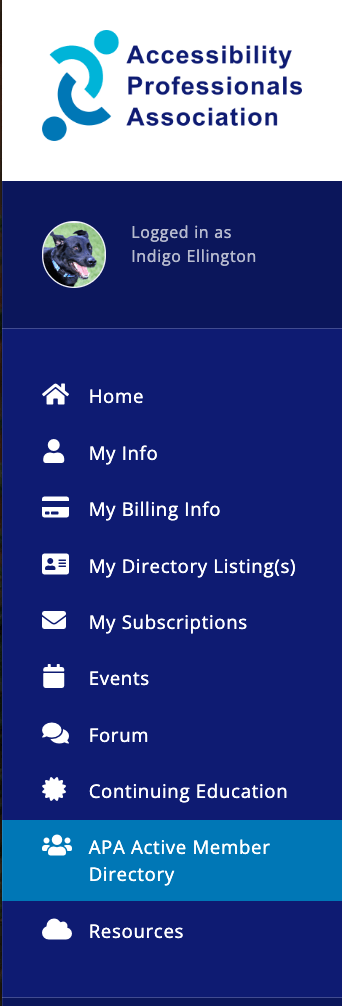
In addition to the public directories, an APA Member Directory is available to active members who are logged into the hub. The purpose of this directory is to promote networking, so contact information, including phone numbers and email addresses, is available to fellow members.
- Note: If you do not want your contact information included in this directory, please get in touch with the management team to have it removed.
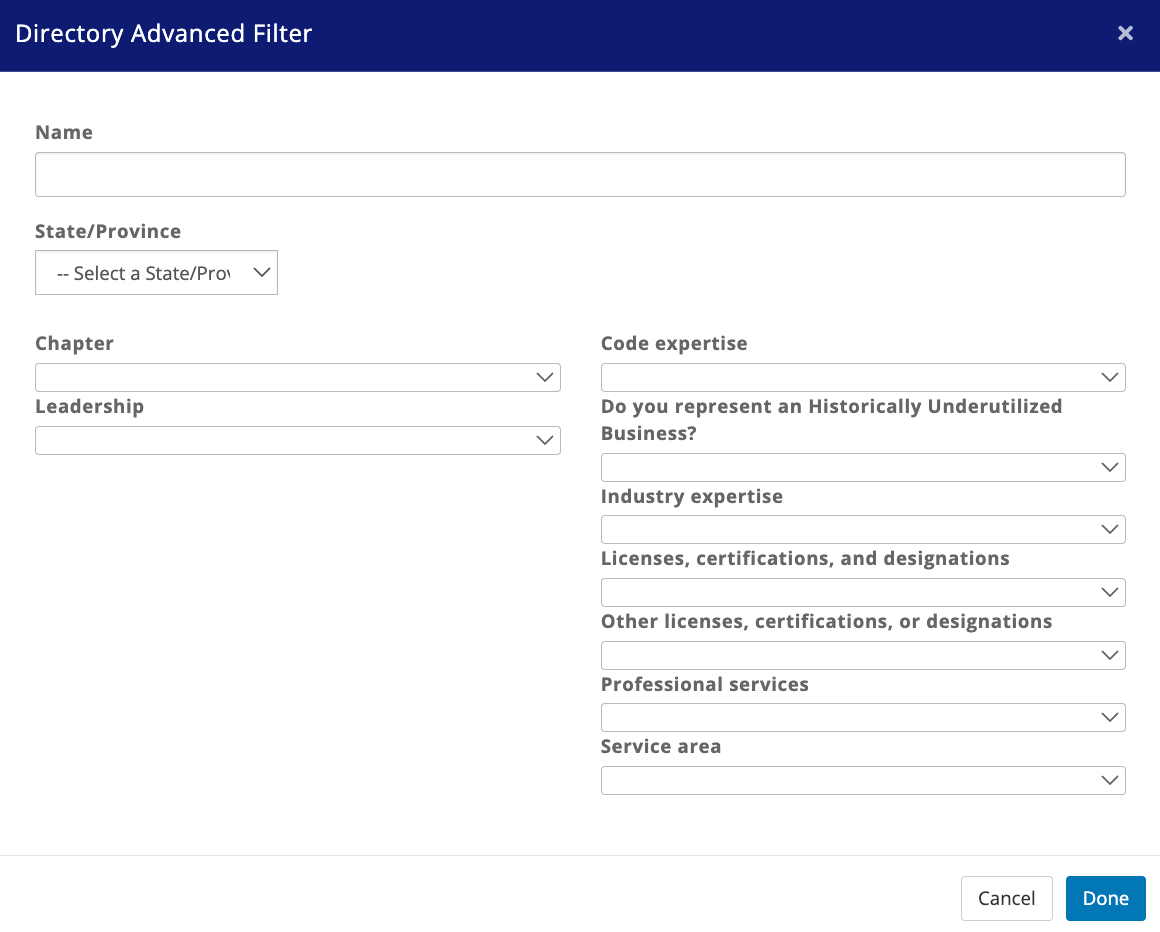
- All of the directories are searchable by name, code expertise, industry expertise, professional services, licenses and designations, and service area. You can also browse all directory entries by clicking All in the lower right corner.
- The Member Directory also allows searches based on state, leadership positions, and chapter.
Creating Your Directory Listing
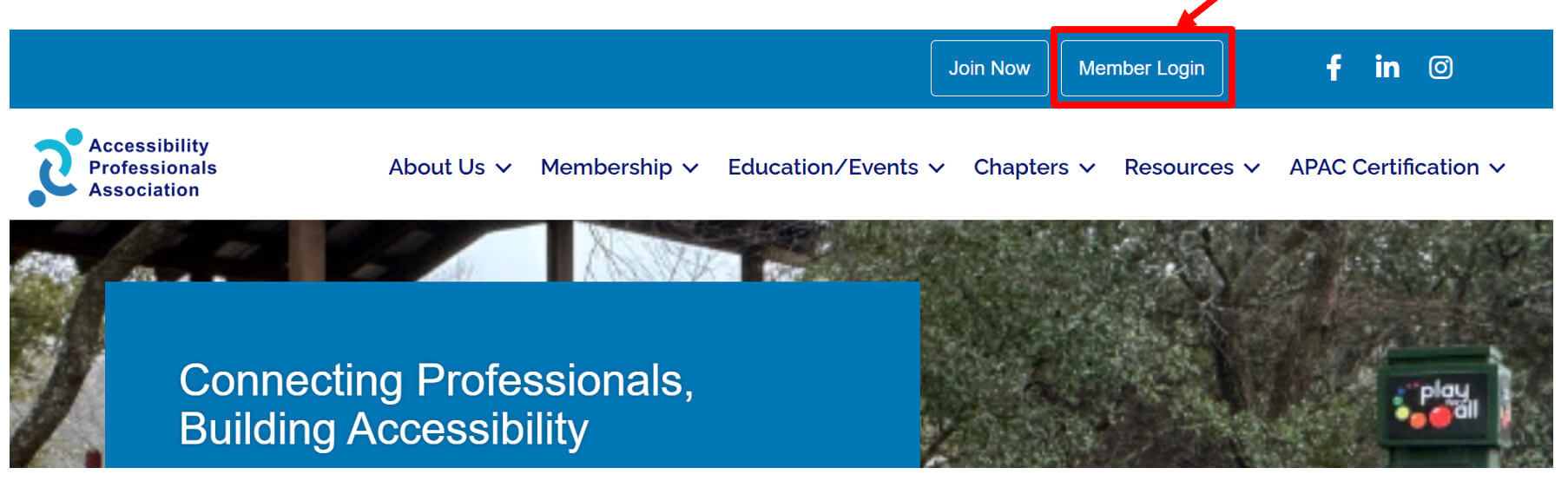
To create your directory listing, you will need to log in to the member hub. To get there, go to APAacccess.org, and click Member Login. Once you are in the hub, you can also save the URL in your favorites.
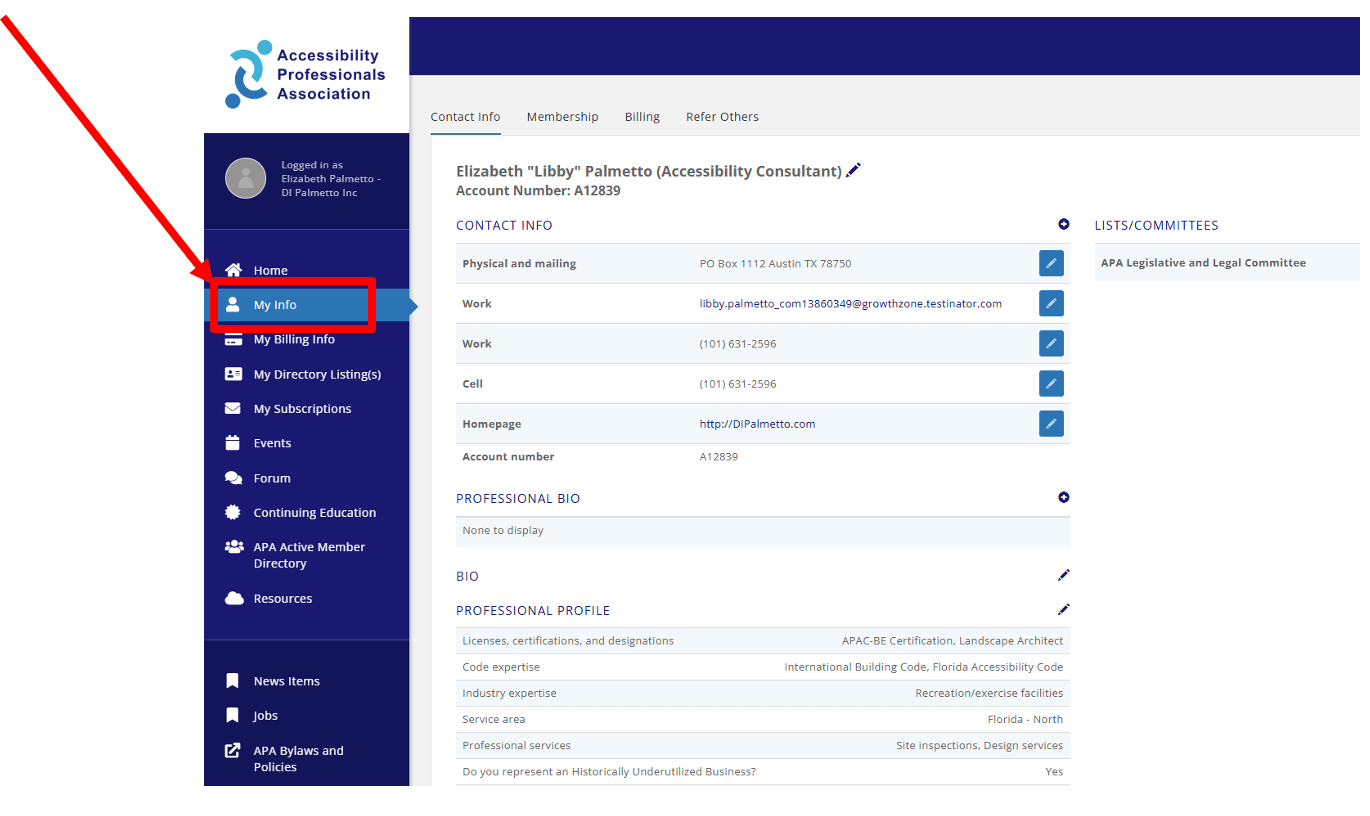
- Once in the hub, click on My Info. This is where you can edit your personal information.
- Start by verifying your personal information. If you need to edit, click the pencil icon and make corrections. You can enter multiple email addresses and phone numbers, but be sure to select which is the default. This is where organization emails will be sent.
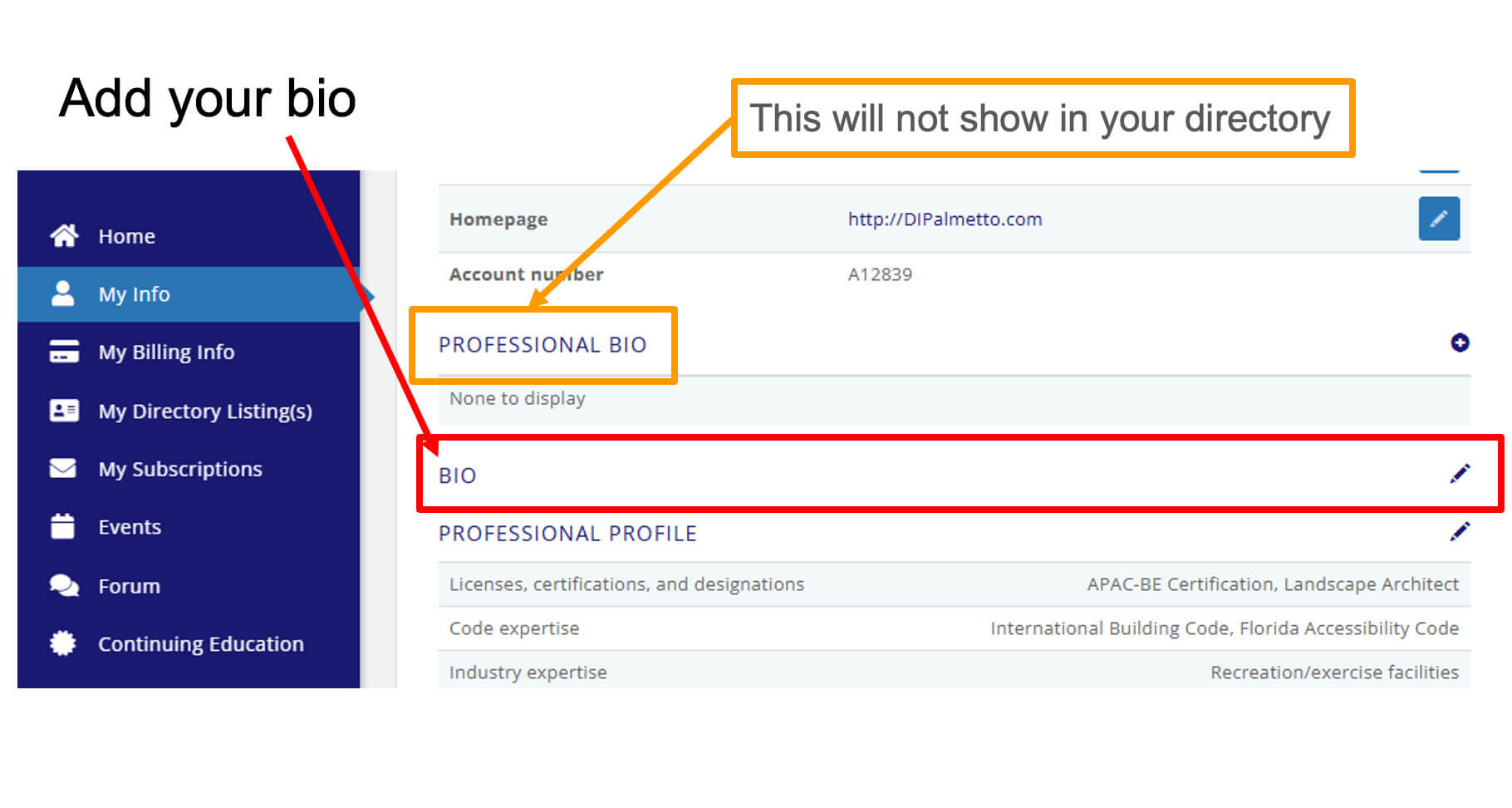
- Next, enter your bio. To have your bio appear in the directory, click Bio (as shown in the photo to the right with a red square), then paste in your prepared content. The Professional Bio (shown in the photo to the right with a yellow square) allows you to create a record of your education and work history, but it does not appear in the directory. Remember: The information you include in the Bio section, not the Professional Bio section, will be listed in the directories.
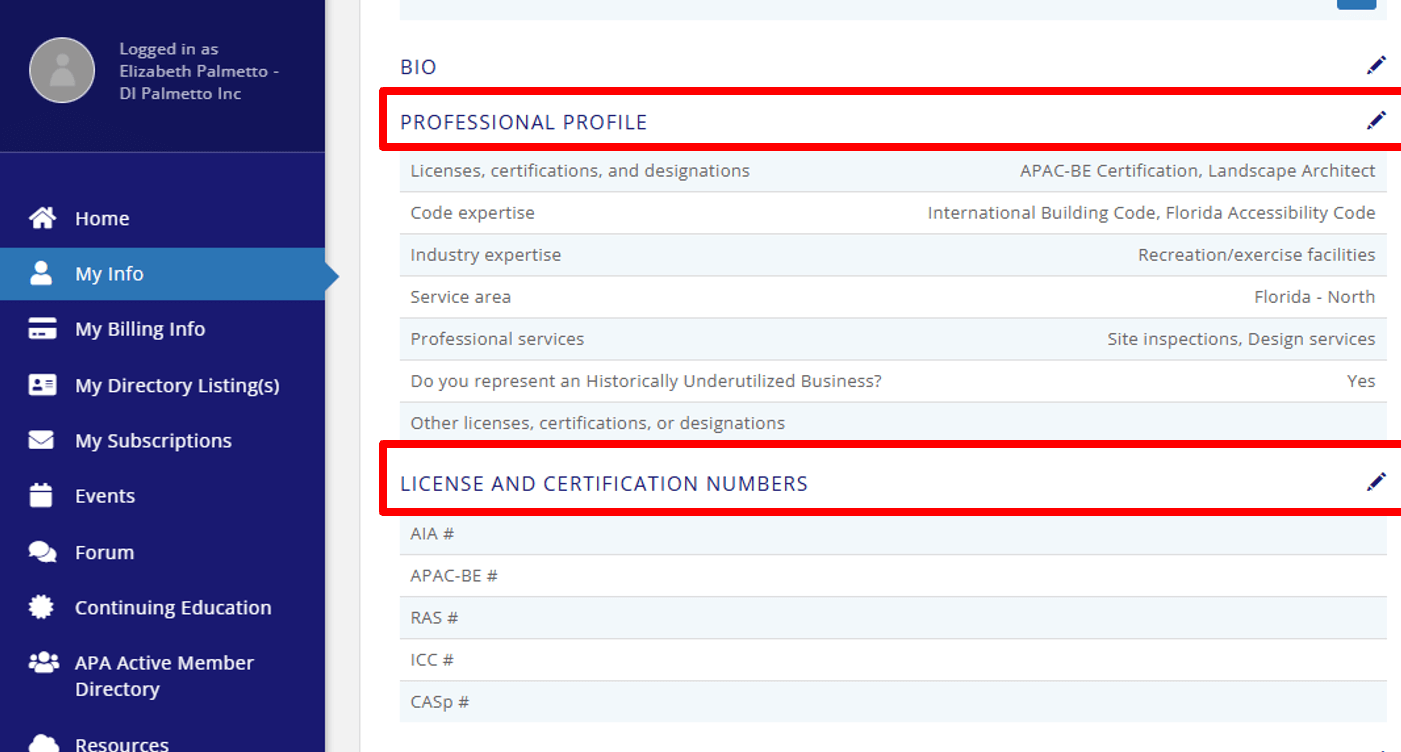
- Now, add your professional profile for directory searches. Then, enter your license and certification numbers below to ensure accurate reporting of continuing education credits and event registration.
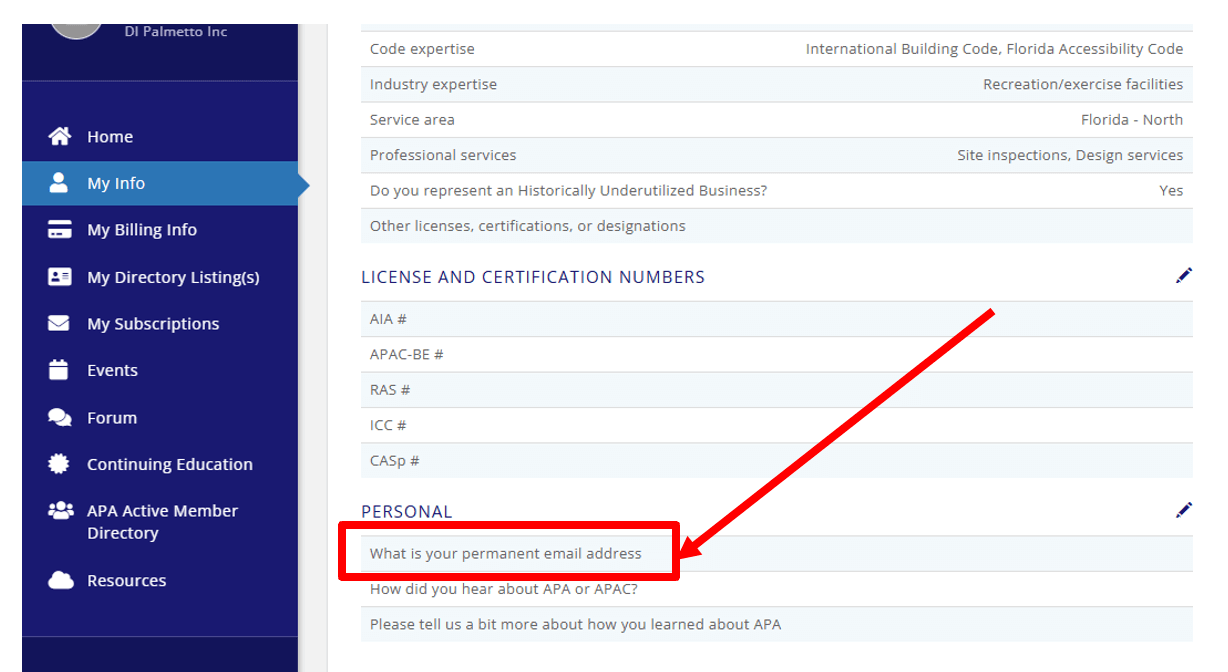
- We sometimes lose members when they change jobs and email addresses. Please provide a permanent email address. This will only be used if we can’t find you any other way. You may have to scroll down the page to find this area.
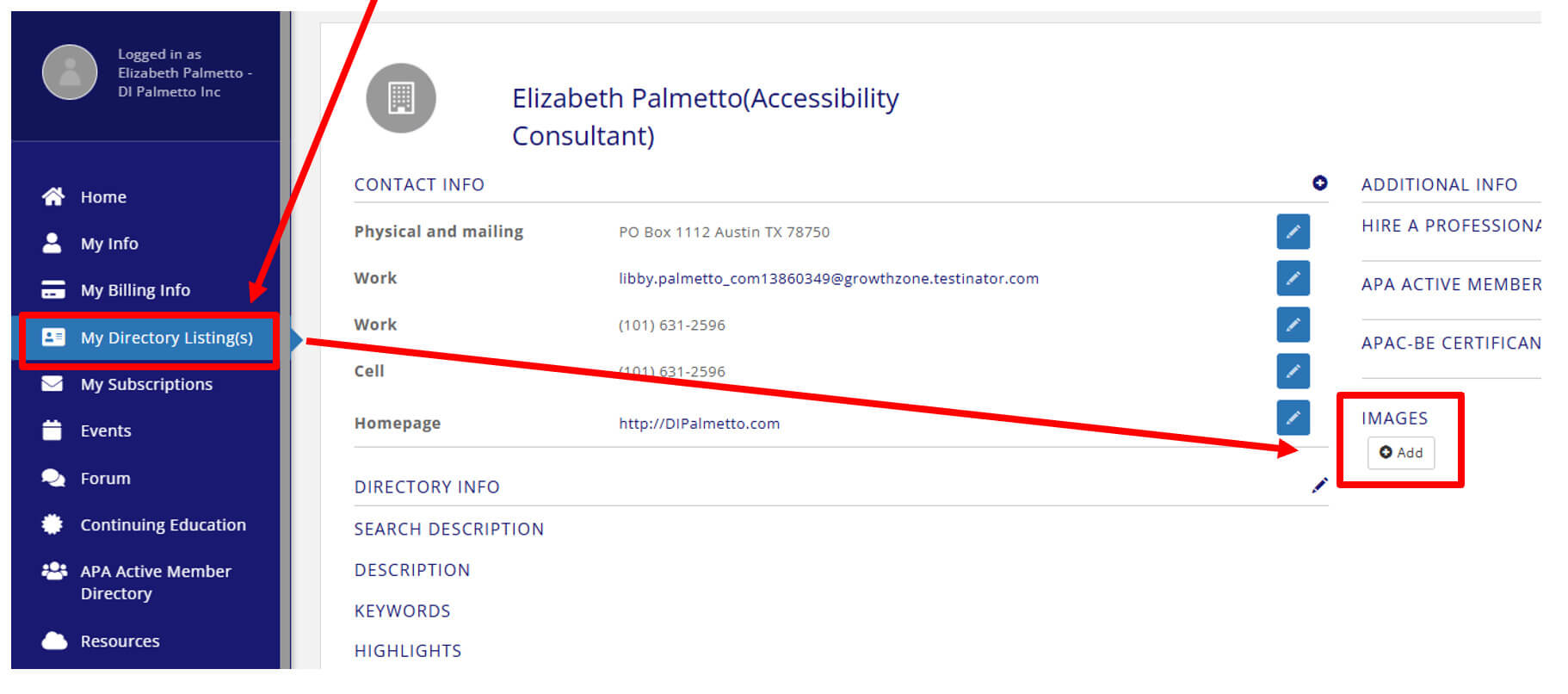
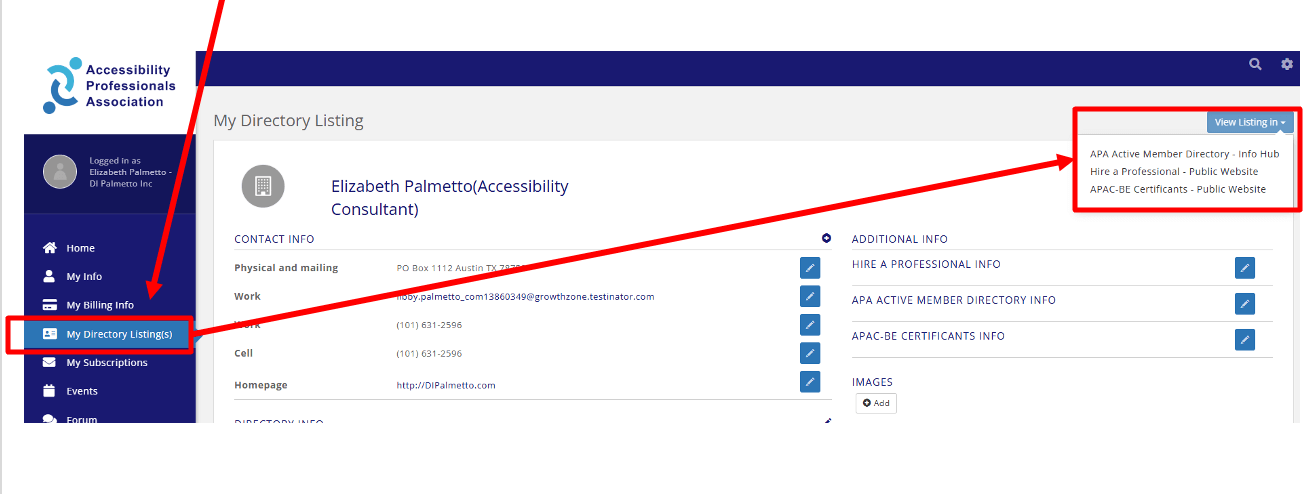
- If you’d like to add photos or videos to your directory listing, click on My Directory Listing and then upload your material using the Add button.
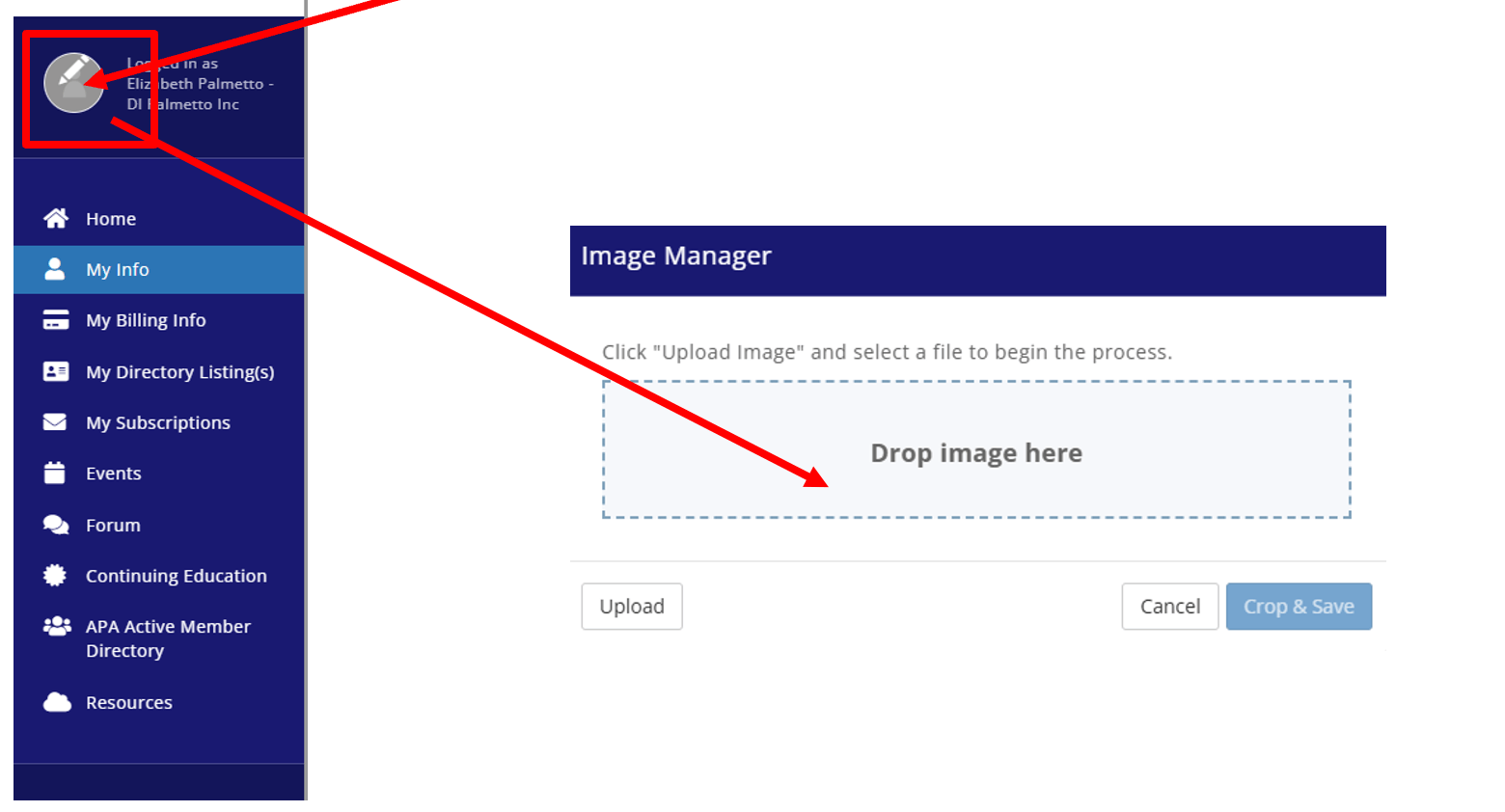
- To complete your profile, upload a photo. Look for the circle next to your name in the upper-left menu, hover over it, and follow the instructions. Adding a professional photo is highly recommended as it can significantly increase engagement with your profile.
- After you complete your profile, make sure your information is correct by searching for yourself in the Member Directory (available in the Hub or on the public website). Please check your listing periodically to ensure all your details remain current.
We appreciate you updating your profile!
This crucial step ensures you can connect more effectively with the member community and significantly increase your visibility in our public directory.
APA Member Spotlight
Boost your visibility with the APA Member Spotlight!
Every month, APA features one of its members on the APA homepage and social media. The only requirement for consideration is an up-to-date member profile that includes a profile picture and a prose biography.